Speed up PyCharm Debugging with Psyco

I’ve been digging what JetBrains is doing with PyCharm, and I’m looking forward to the 1.0 release. Almost everyone doing Python development at work has switched to it. I noticed something a while back that peaked my curiosity, though. While debugging, I came across a cryptic message in PyCharm’s console window:

pydev debugger: warning: psyco not available for speedups (the debugger will still work correctly, but a bit slower)

What’s all this now? Are you saying something on my box isn’t running as fast as it could be? That wouldn’t do at all.

So, I loaded up my web browser. A quick Google search later and I’d found the psyco project on Sourceforge. Psyco is a specialized Python compiler, created by Armin Rigo who is now working on PyPy. Psyco speeds up the execution of most Python programs with a single extension module. Development of psyco was recently taken over by Christian Tismer, who has made many improvements to psyco.

At work, I tend to live in Windows or Ubuntu, and at the moment I was working in Windows, so I followed the link over to Michael Foord’s site where he’d thrown together some 32-bit Windows binaries for psyco 2.0 on Python 2.4, 2.5, and 2.6. I grabbed the 2.6 version, but I didn’t immediately install it.

To gauge the benefit of a psyco-powered debugger versus one without, I first needed to run a baseline benchmark. My work box is a Dell Precision T7400 with an Intel Zeon E5405 @ 2.0Ghz with 8Gb ram on Windows XP SP2 x64. My Python version is 2.6.5 (32-bit – psyco does not as yet work with x64).

I created a new Python project, and copied the pystone.py benchmark file from my Python distribution’s test folder into it. Here’s the results of my first non-psyco debugger run.

C:/Tools/Python26/python.exe "C:\Program Files (x86)\JetBrains\PyCharm 96.742\helpers\pydev\pydevd.py" --client 127.0.0.1 --port 13926 --file C:/Source/PsycoTest/pystone.py
Connected to pydevd (version 1.1)
pydev debugger: warning: psyco not available for speedups (the debugger will still work correctly, but a bit slower)
pydev debugger: starting
Pystone(1.1) time for 50000 passes = 8.70703
This machine benchmarks at 5742.49 pystones/second

Process finished with exit code 0

Next, I installed psyco and ran the test again.

C:/Tools/Python26/python.exe "C:\Program Files (x86)\JetBrains\PyCharm 96.742\helpers\pydev\pydevd.py" --client 127.0.0.1 --port 13936 --file C:/Source/PsycoTest/pystone.py
Connected to pydevd (version 1.1)
pydev debugger: starting
Pystone(1.1) time for 50000 passes = 5.49379
This machine benchmarks at 9101.18 pystones/second

Process finished with exit code 0

Not too shabby. My pystone benchmark went from 5742.49 to 9101.18: a 63% improvement just by installing a Python library! Clearly I’m going to have to experiment using psyco for some of my own projects.

Run Coverage.py under PyCharm

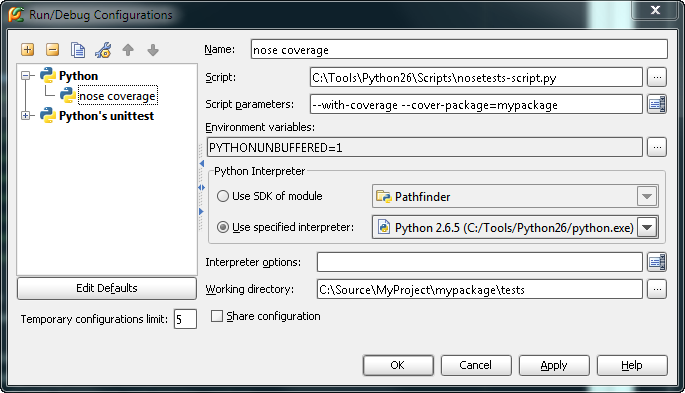
PyCharm‘s test runner does not currently support running Ned Batchelder’s excellent Python code coverage tool coverage.py. While this may be addressed before final release, you can easily set up a run/debug configuration manually to get the same effect. From within PyCharm, select the Run -> Edition Configurations menu item.

Coverage.py Configuration

Coverage.py Configuration

In the Run/Debug Configurations dialog, click the box with the plus sign in the upper right corner to create a new Python script configuration. Call the configuration whatever you want. I tend to run coverage.py as part of nose, so I enter the path to the nosetests-script.py on my file system in the Script field. Under Windows, this will be in the Scripts sub-directory of your Python installation directory. If you’re on Linux or OSX, you can use the nose/core.py file in your site-packages folder.

In the Script parameters field, I enter the --with-coverage and --cover-package command line parameters. Finally, in the Working directory field, I add the path to the directory containing my unit tests. Running this configuration executes code coverage on my unit test directory, and PyCharm is smart enough to recognize any stack traces that may occur during the run, providing click-able links to the offending lines of code.

R&D Week One Wrap Up

Its a new year, and at work, the emphasis is definitely on the ‘new’. I’ve joined a new team, social media, in a new department: R&D. I have a new desk (to be honest, its just a new spot in the cube farm), and new operating system: Linux. We’re working with what is for most of the team a new programming language, Python, and a new continuous integration server: Hudson.

Hudson

Hudson is pretty impressive. I’d never even heard about it before Ed found it last Tuesday. In addition to continuous integration, it can also monitor executions of externally-run jobs. We’re trying to favor simpler cron jobs running scripts over the complex service-oriented architectures we’ve worked with on previous projects, so this is a nice bonus. Hudson comes with a ton of plug-ins that enable it to integrate with SCMs such as git, execute scripts of various languages including Python, and run an assortment of tools including nose, coverage, and pylint (just to name a few we’re using). Hudson is written in Java, and it is pretty easy to set up.

VMWare

We’re running all of our Linux systems on VMWare: Workstation 7.0 on our desktops and ESXi on the server. Workstation’s easy install makes setting up Ubuntu 9.10 with an initial user and VMWare toolkit a snap. However, I did notice that for some reason it didn’t install the shared folders driver, so I had to run VMWare tools setup manually anyway to get shared folders working. I still have Windows on my desktop with Visual Studio, IIS, and SQL Server installed in case I have to go back and fix a Studio bug.

Why Python?

The reasons behind the switch from C# and .NET to Python were faster development and easier scalability. I’m not saying we couldn’t achieve scalability with .NET, IIS, and SQL Server. I’m saying for what we’ll be doing, its easier to accomplish with Python, Tornado, and nginx. Since we’re new team, any budget increases have to be earned by achieving specific milestones, so it doesn’t hurt that all of our software tools with the exception of VMWare Workstation are now free.

Small Team

Finally, its really nice to be back on a small development team. I only have to report to one person, so those CC’d email sh*t storms where you’re trying to keep several stake holders informed of your status is no longer an issue. The other two developers I work with are on either side of me and both highly skilled, so most design and implementation discussions are usually resolved pretty quickly. We even pair programmed a few days last week. It was occasionally frustrating as everyone gets up to speed on Python, but there was definitely value in it. We’re being pretty aggressive with our milestones, so I don’t think we’ll be pairing all the time.

C# XML Comments – Tools of the Trade

A few months back, someone at work commented on the amount of XML comments in my C# code. I admit, I do tend to prefer more comments in my C# code. Unless I’m working on the quickest and dirtiest of throw-away apps, I try to comment my classes as if they were going to be used as a framework by other developers. I find that the process of creating the documentation actually helps me focus on what the class or method should actually be doing.

Also, I’ve been on the receiving end of poorly documented code.

Cut the next poor bastard a break and comment your code.

To be clear, I’m not talking about comments in the body of a method itself. I’ve found that if the body of a method requires more than a few comments to describe what it’s doing, that method probably needs to be refactored. I’m talking specifically about the XML comments (or JavaDoc comments in the case of Java source code) of the public and protected members of my non-private classes.

This post describes the tools I use on a regular basis to produce good code documentation. These tools are primarily targeted towards C# developers working in Visual Studio. I may do another post later to describe tools useful for recreating this process in other languages and platforms. If you’re a VB.NET programmer, there’s a good MSDN article on XML comments in Visual Basic you might want to check out.

GhostDoc

GhostDoc is a free Visual Studio add-in originally created by Roland Weigelt. It was recently acquired by SubMain, but they’ve stated that it is their intention to keep it free.

Options screen for GhostDoc

Configuration screen for GhostDoc

Visual Studio 2008 already helps a little with XML documentation by inserting the tags for you when you type three forward slashes (i.e. ///) and hit Enter.

/// <summary>
///
/// </summary>
/// <param name="id"></param>
/// <returns></returns>
public string GetName(int id)
{
    return string.Empty;
}

GhostDoc does you one better by filling out the empty XML comment tags with text based on code element type, parameters, name, and other contextual information. The default keyboard shortcut is Ctrl-Shift-D. You can also get at GhostDoc via the context menu.

/// <summary>
/// Gets the name.
/// </summary>
/// <param name="id">The id.</param>
/// <returns></returns>
public string GetName(int id)
{
    return string.Empty;
}

Usually, a bit of modification to the comments generated by GhostDoc is all I need.

Agent Smith

Agent Smith is a C# coding style validation plug-in for ReSharper hosted on Google Code. You need to have ReSharper installed in order to use it. In addition to naming validation and smart paste, Agent Smith provides some valuable features for writing XML commenting including comment validation, re-flow, and spell check.

Agent Smith - Code Style Settings

Agent Smith - Naming Convention Settings

Agent Smith - Spell Check Settings

Agent Smith - Dictionaries

I use this plug-in primarily for pestering me about naming conventions and for the the spell checking. I’ve tried other Visual Studio plug-ins for spell checking, but by far this is the one I like the best.